Notebook Challenge
Overview
Notebook Challenges allow candidates to work within a fully integrated Jupyter Notebook environment. These are ideal for evaluating complex data analysis, engineering, and machine learning workflows.
Configuration Process
Creating a Notebook challenge follows a guided workflow to define the analytical environment and evaluation parameters.
Step 1: Basic Details & Data Environment
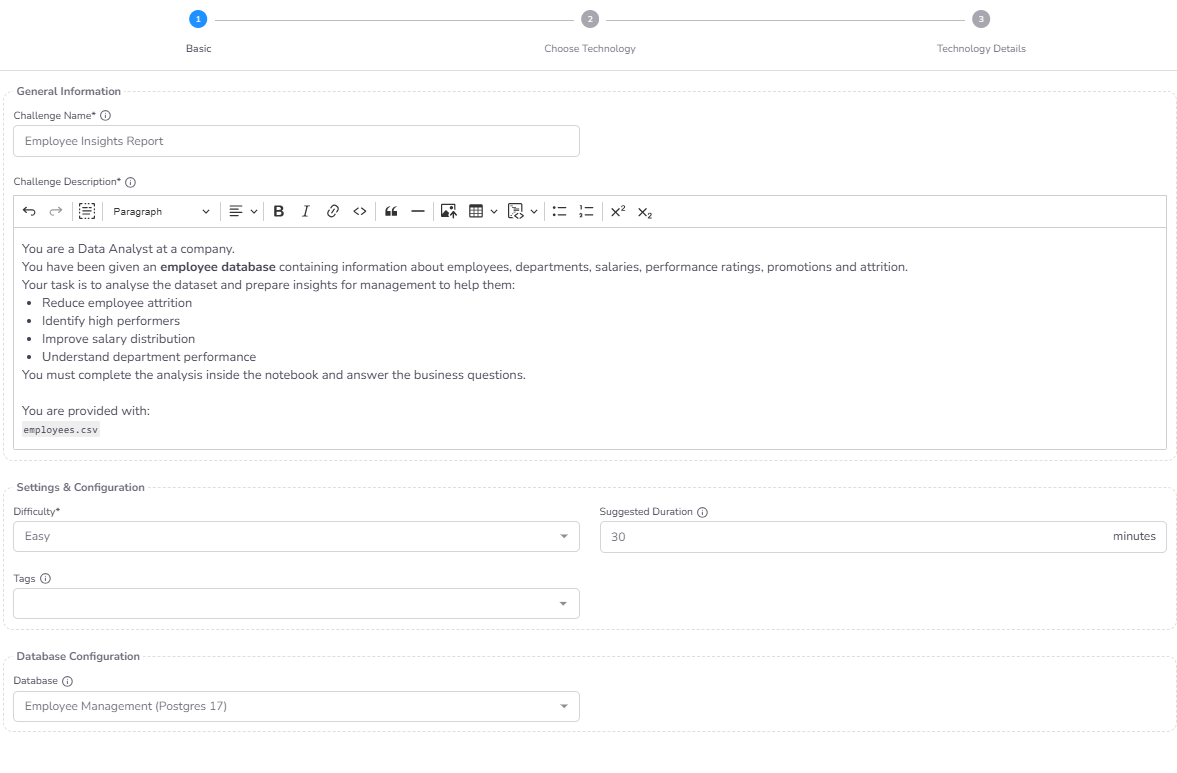
Configure the metadata and optional data resources:
- Challenge Metadata: Provide the Name, Description, Difficulty, Duration, and Tags.
- Database Selection (Optional): You can link a pre-configured Database that will be directly accessible within the notebook for data retrieval and analysis tasks.
Step 2: Technology Selection
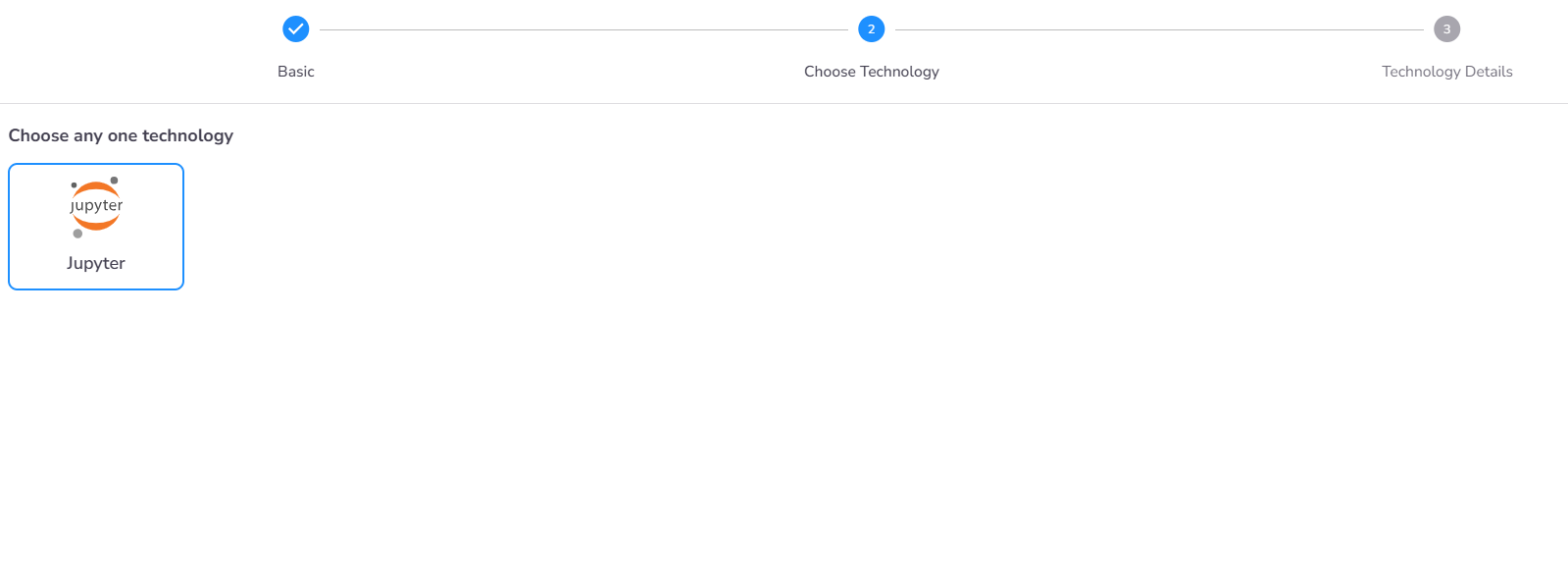
Choose the notebook execution environment. Currently, Jupyter Notebook is the supported technology, providing a robust platform for Python-based data science.
Step 3: Runtime Review
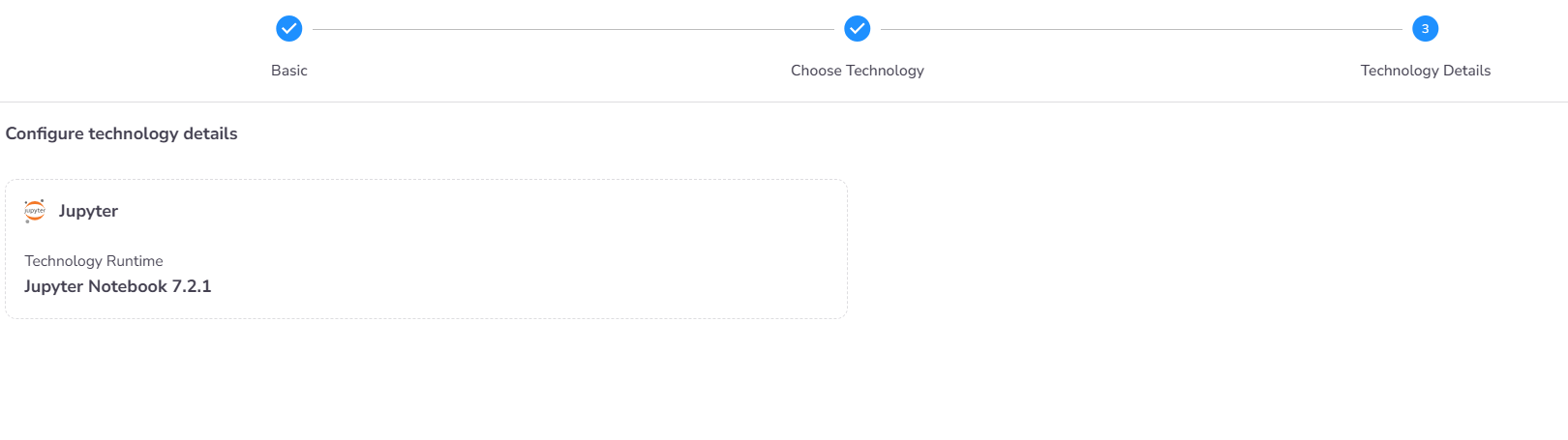
Review the technical configuration and runtime details for the Jupyter Notebook environment to ensure all necessary system resources are correctly allocated.
Post-Creation: Environment & Content Setup
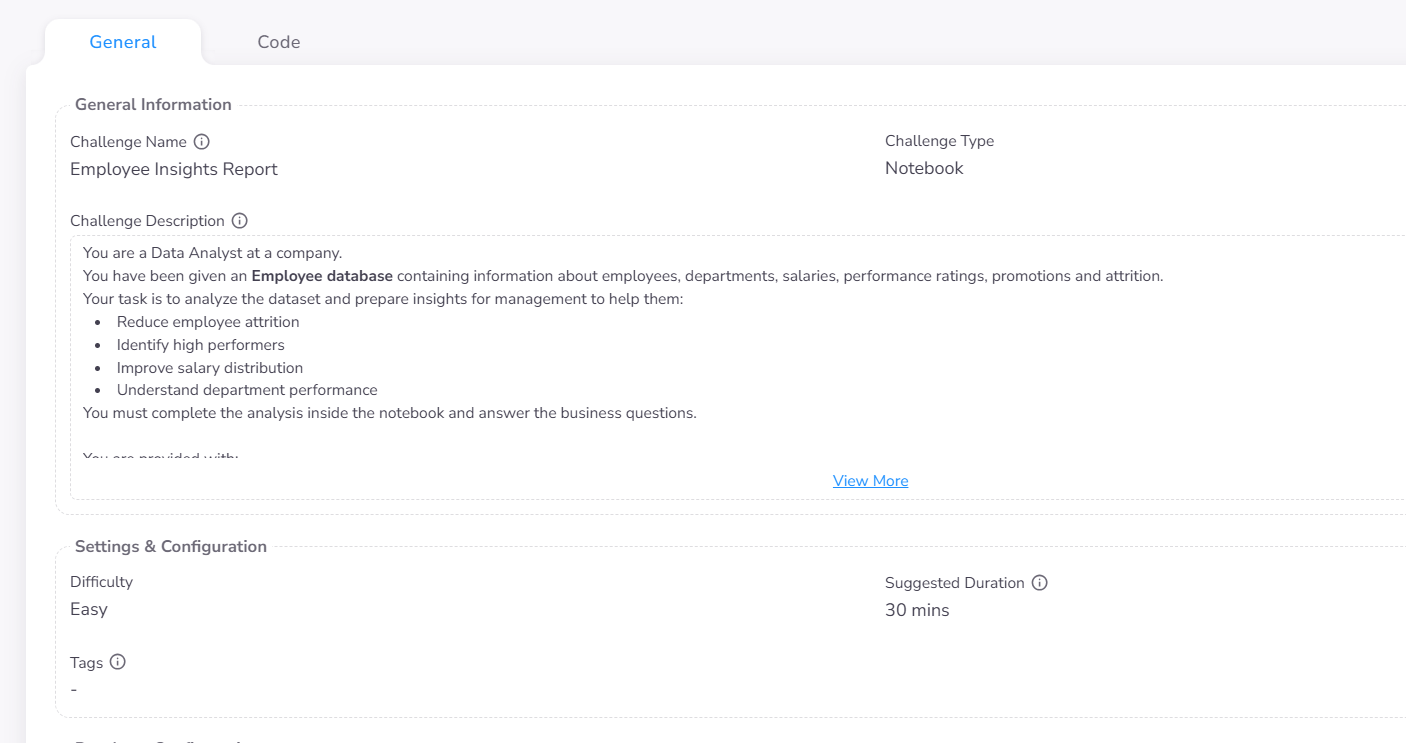
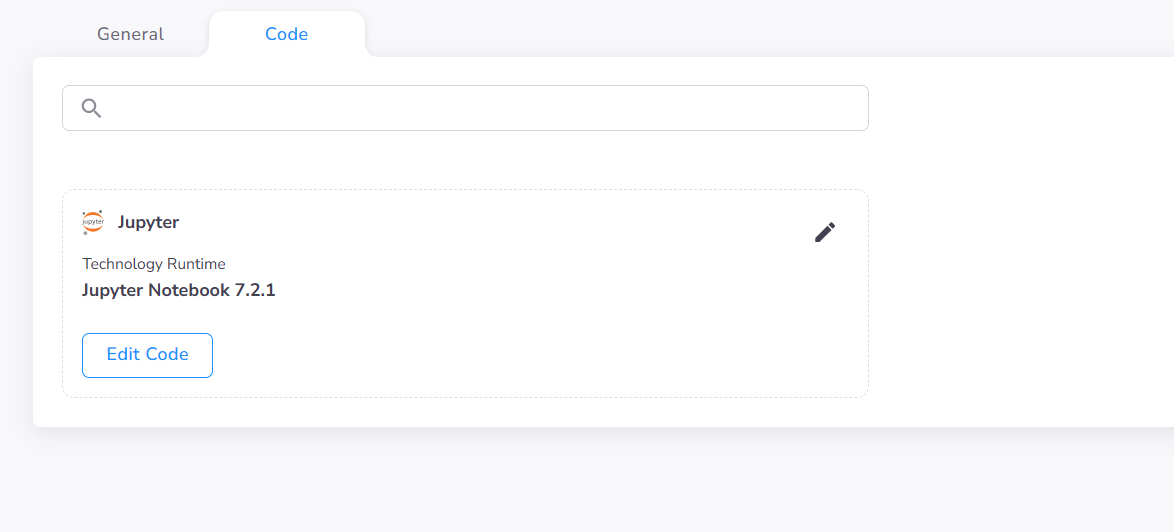
Once the challenge is created, navigate to the Code tab from the Challenge General Details Page to finalize the technical content.
Preparing the Notebook
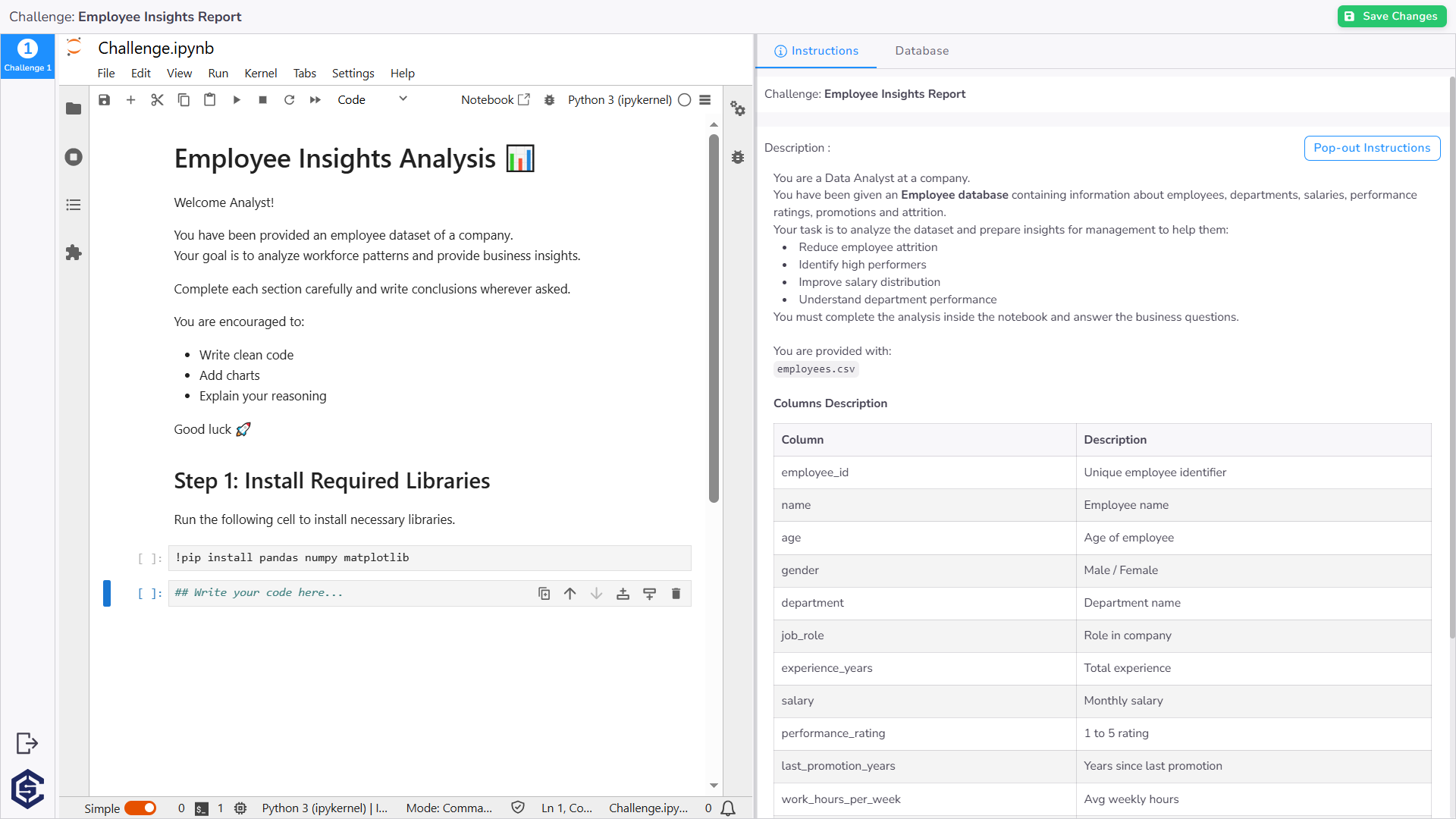
The Edit Code interface provides a full Jupyter environment where you can:
- Initialize Cells: Pre-populate the notebook with markdown cells for task instructions and code cells with helping commands (e.g., library imports or data loading) to help candidates get started.
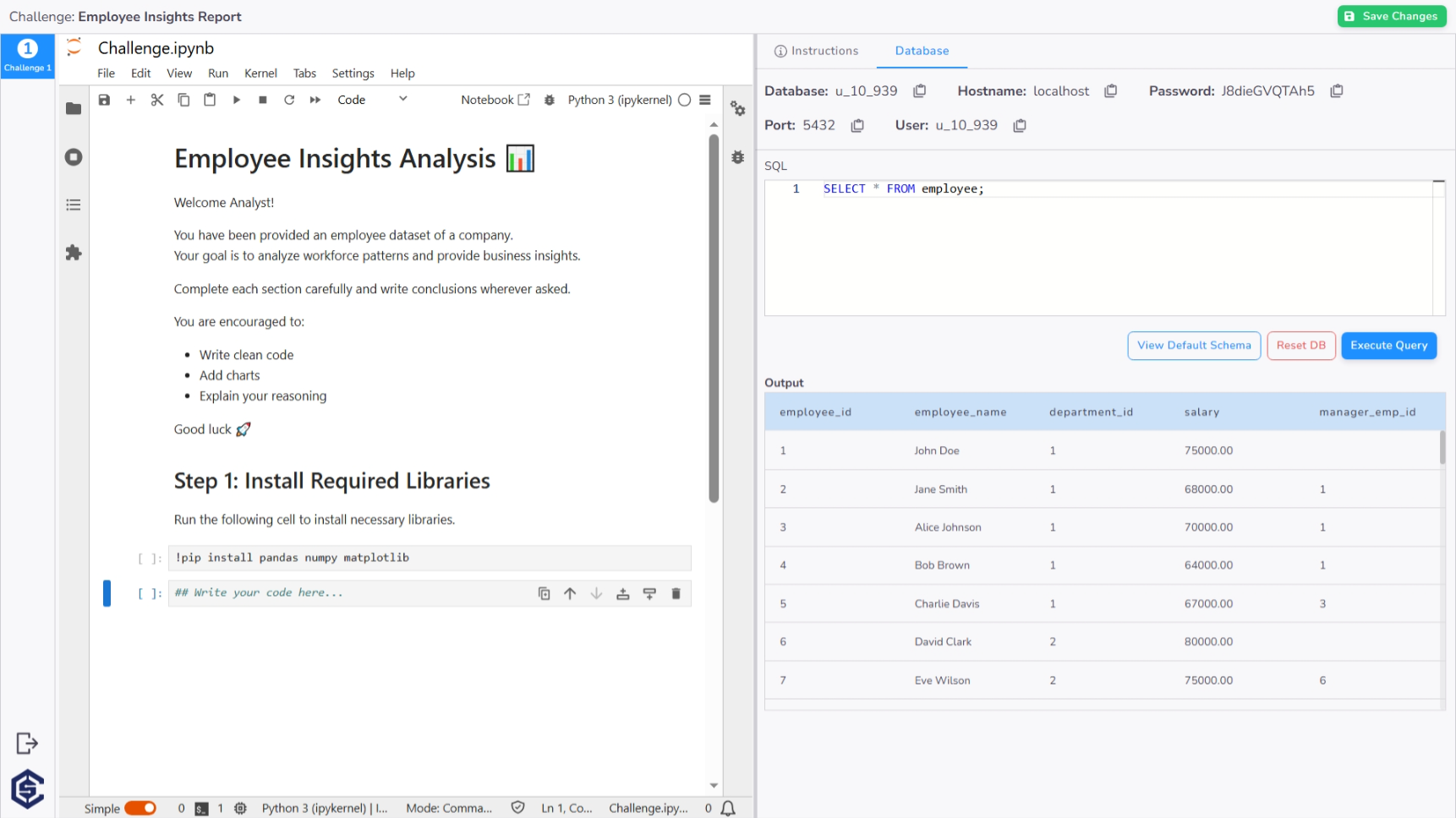
- Data Access: If a database was linked during Step 2, candidates can use the Database tab in the right-hand panel to browse the schema and execute test queries while building their models.
Using the Right Panel
The right panel provides essential tools for the candidate:
- Challenge Instructions: A dedicated space to review the problem statement and requirements without switching away from the notebook.
- Database Helper: A utility to execute SQL queries and view results, facilitating data-driven notebooks.
Ensure you click Save Changes once your notebook content, boilerplate cells, and instructions are finalized.
Next steps
- Manage database environments →
Databases