Multi-Workspace Management
The Multi-Workspace feature is the cornerstone of organizational management within the CoderScout Enterprise Plan. It allows global organizations to structure their hiring efforts into distinct high-level environments, ensuring that data, users, and libraries remain isolated where necessary.
Core Capabilities
1. Hard Data & Team Isolation
Each workspace acts as an independent structure. When you invite a user to a specific workspace, they gain access only to the assessments, candidate reports, and challenge libraries within that environment. This prevents "cross-contamination" of data between unrelated departments or global offices.
2. Left Sidebar & Workspace Switcher
The CoderScout interface is optimized for multi-workspace navigation:
- Context Awareness: The active workspace name is always visible in the left sidebar.
- Instant Switching: Admins with access to multiple environments can toggle between them instantly via the Switcher, eliminating the need for multiple accounts.
Configuration & Setup
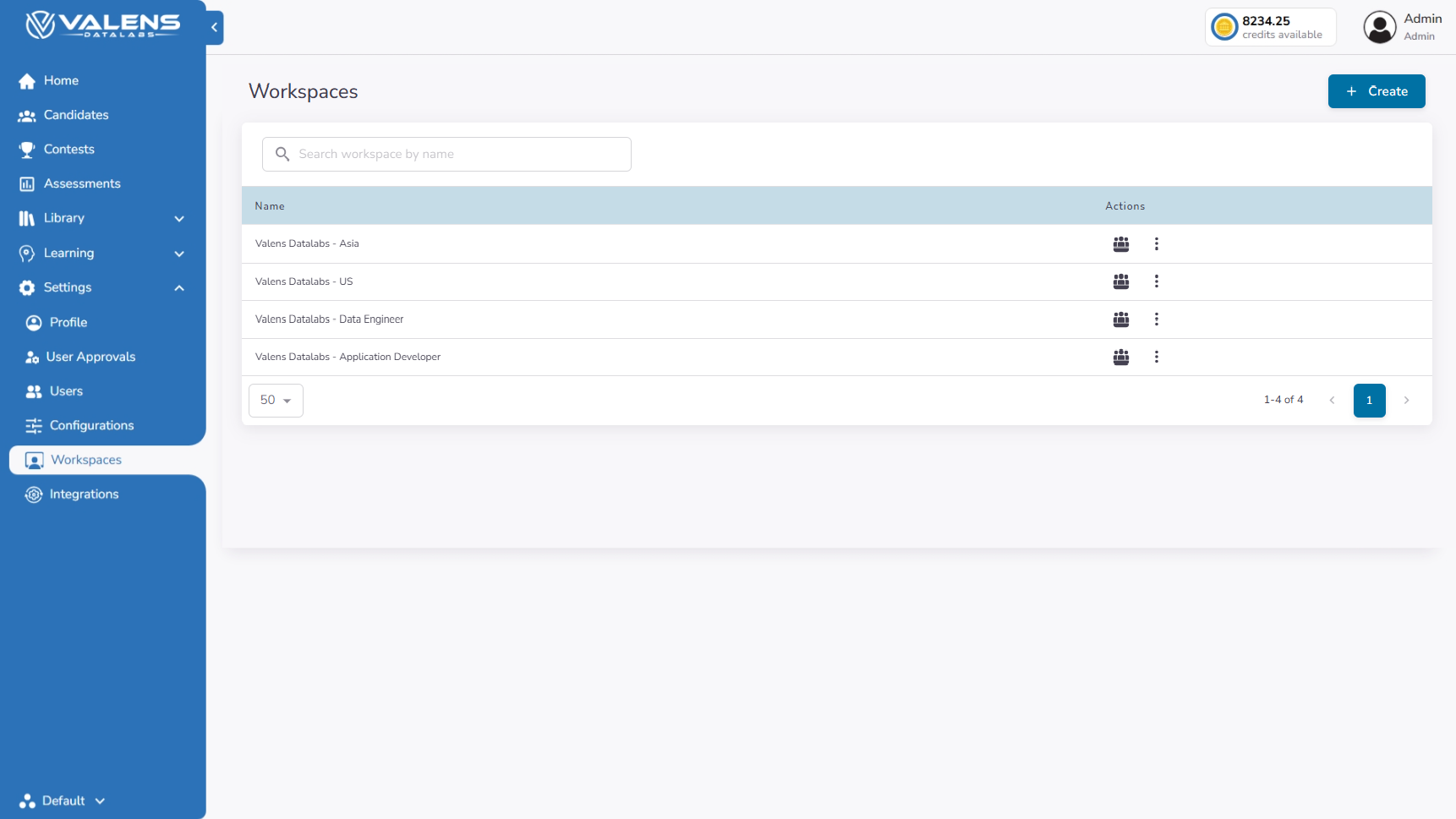
Administrators can manage the organization's workspaces by navigating to Settings > Workspaces in the left sidebar.
Managing Your Environments
From the workspaces screen, you can:
- Initialize New Workspaces: Create location-based or department-based environments on demand.
- Audit User Access: See which team members are assigned to which workspace.
- Organization-Wide Oversight: Global admins maintain a "bird’s-eye view" of all workspaces while ensuring team leads only see what is relevant to them.
Strategic Organization: Workspaces vs. Assessments
To maintain a scalable hiring architecture, it is essential to distinguish between Workspaces (long-term organizational structures) and Assessments (tactical, campaign-based evaluations).
- Use Workspaces for high-level boundaries like geographic regions (e.g.,
Valens Datalabs US) or large departments. - Use Assessments for specific job openings within those workspaces.
For a deep dive into when to use each, refer to our Workspaces vs. Assessments guide.