Candidate Home Page
Post-Login Experience
Once a candidate successfully completes the login process, they are directed to the Candidate Home Page. This dashboard serves as the central hub for their assessment journey, providing a clear overview of the required stages and instructions.
Dashboard Components
The home page is designed to guide candidates through their evaluation with the following key elements:
1. Assessment Overview
The top of the interface clearly displays the Assessment Name, ensuring candidates are in the right place.
2. Comprehensive Instructions
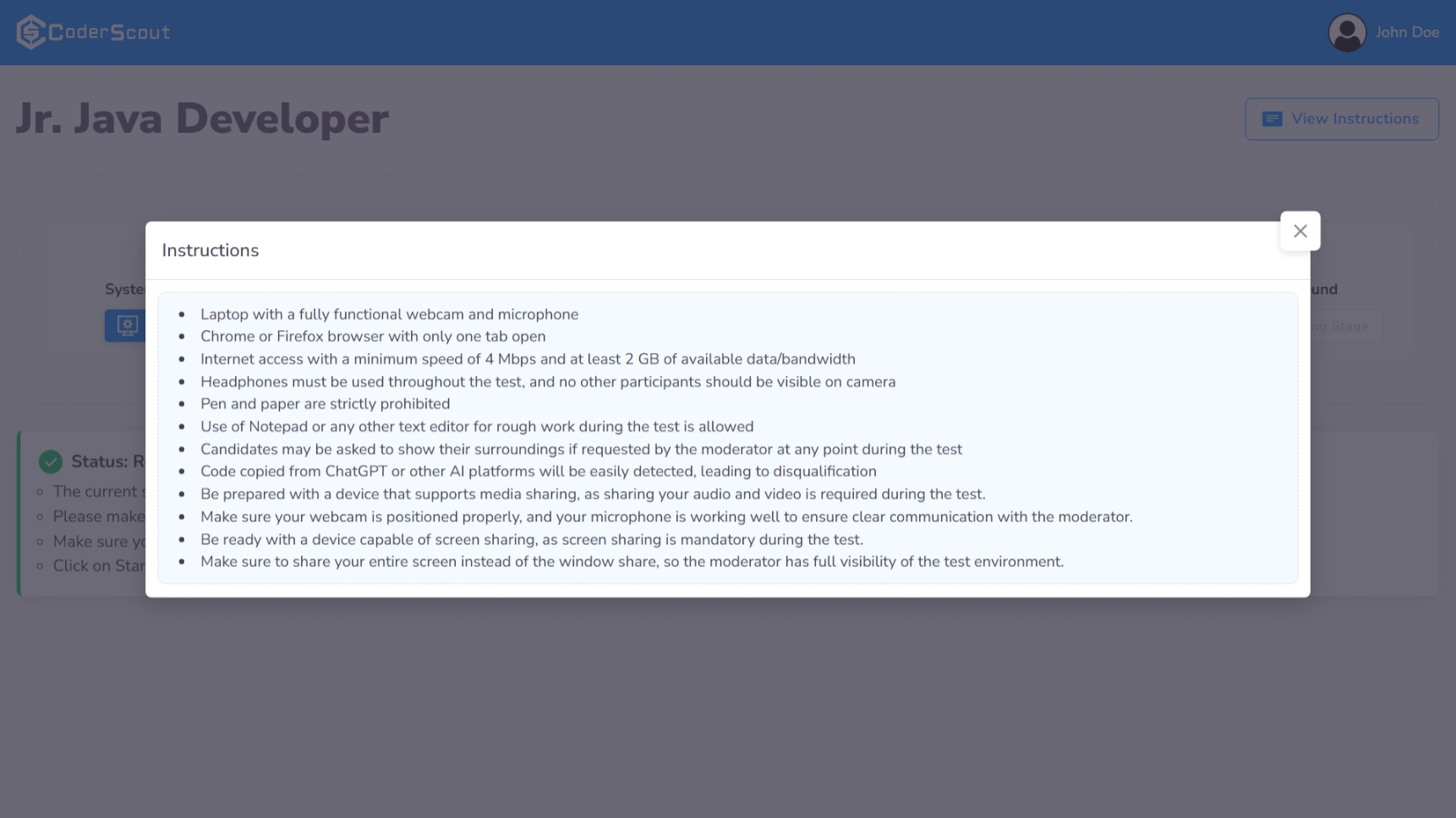
Candidates can access detailed performance guidelines, rules, and technical requirements at any time by clicking the View Instructions button.
3. Stage Sequence
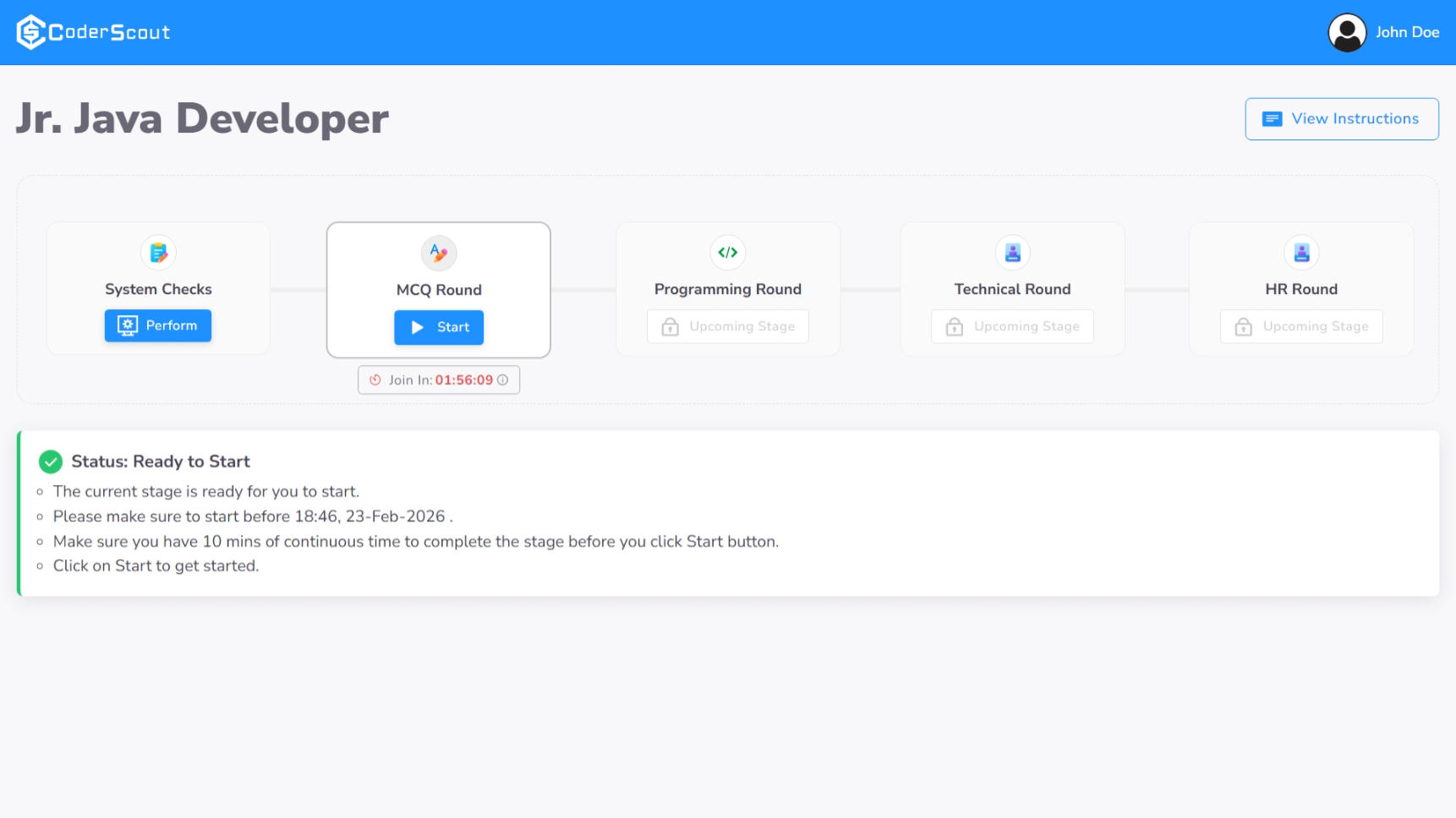
The dashboard presents a structured list of Assessment Stages (e.g., Quiz, Programming, Video Response) in their required order. Each stage box represents a specific milestone in the candidate's journey.
4. System Verification
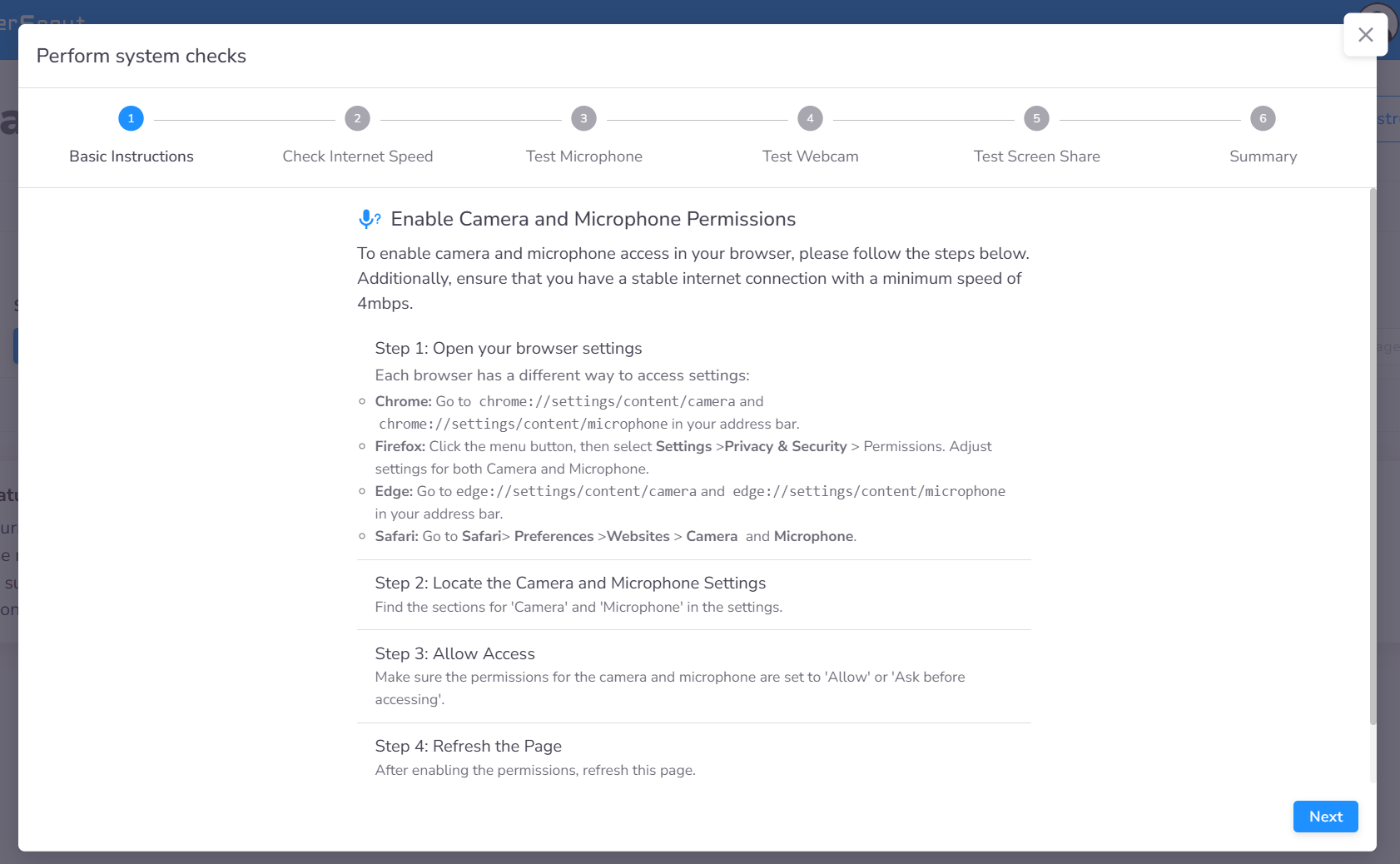
If a System Check has been configured for the assessment, a dedicated verification panel will appear at the head of the stage list. This mandatory check ensures the candidate's hardware, camera, and network connection are optimized before they begin the technical evaluation.
The system verification process consists of four essential steps:
- Internet Speed Check: Validates that the candidate's connection meets the minimum bandwidth requirements for a smooth experience.
- Microphone Check: Verifies audio input. We recommend candidates use the same headset they intend to use during the actual assessment or interview.
- Webcam Check: Ensures the camera is functional and compatible with the platform, preventing issues caused by outdated hardware or browser versions.
- Screen Share Verification: Confirms that the candidate's system permissions allow for screen sharing, which is often required for proctored or technical stages.
Home Page Dashboard View
The following image illustrates how these components appear on the primary dashboard:
5. Stage Start Deadline
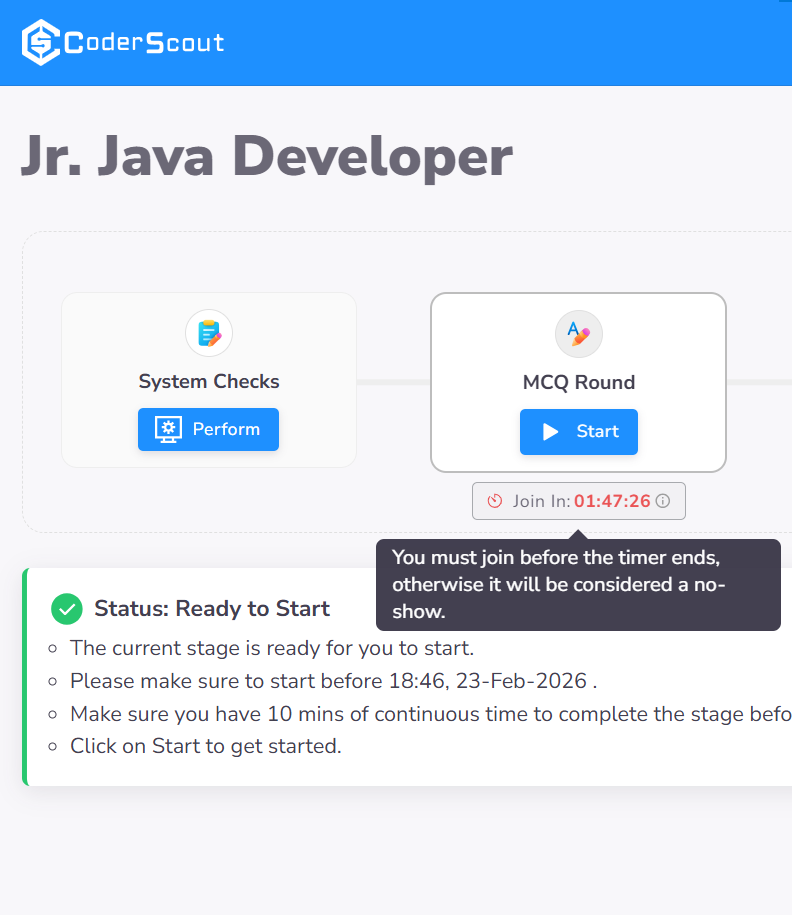
If a stage has a mandatory start window, the deadline will be prominently displayed below the stage box.
- Automatic Penalty: Failing to initiate the stage within the configured time frame will automatically set the candidate's status to "No Show", which is tracked on the Assessment Dashboard.
- Deadline Extension: Authorized users can manually extend or reset this deadline for individual candidates via the Assessment Dashboard if required.
6. Practice (Demo) Challenge
If a Practice Challenge has been configured, candidates will see an option to launch a demo environment alongside the assessment instructions.
- Environment Familiarization: This allows candidates to experience the CoderScout IDE, test their local setup, and understand the interface before beginning the actual evaluation.
- Administrative Configuration: Administrators can enable or update the practice challenge from the General Settings page of an assessment or during the setup walkthrough.
