Invite by email(s)
Use this option when you already have candidate email addresses (from sourcing, referrals, LinkedIn outreach, etc.) and want to start the assessment immediately.
What you can do
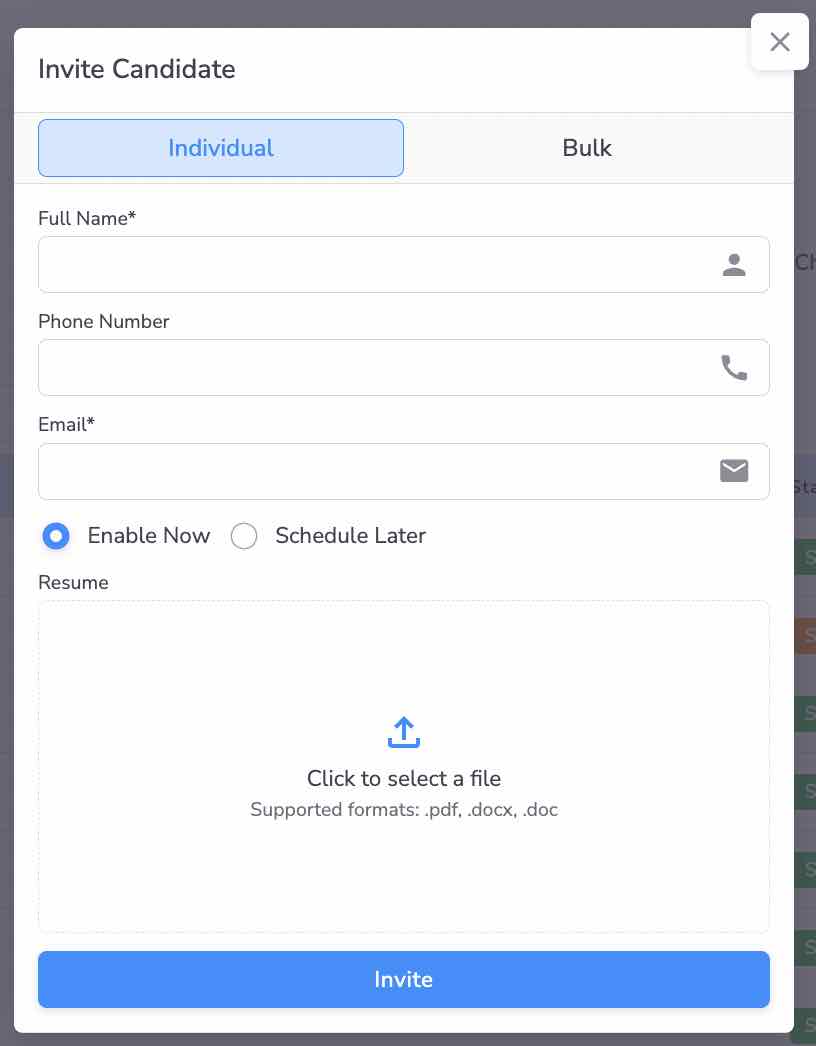
- Invite a single candidate with name, email, optional phone number, and optional resume.
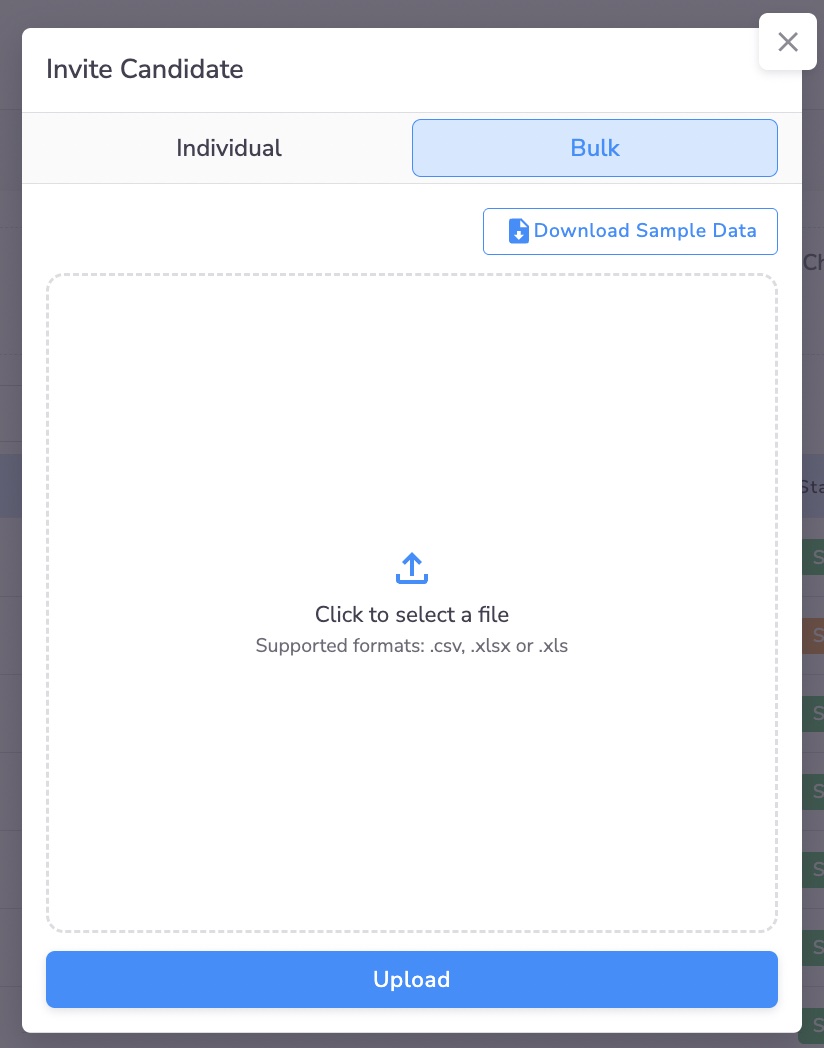
- Invite candidates in bulk by uploading a CSV file.
- Choose whether the assessment is enabled now or scheduled for later.
Before you start
- Make sure the Assessment stages are configured.
- If you want candidates to go through Resume Scoring first, use Invite via Resume Upload (Profile Screening & Resume Scoring) instead.
Invite one candidate (Individual)
- Open the Assessment.
- Go to Candidates.
- Click Invite Candidate.
- Select the Individual tab.
- Fill in:
- Full Name
- Phone Number (optional)
- Resume (optional)
- Choose:
- Enable Now (candidate gets the invite immediately), or
- Schedule Later (send later)
- Click Invite.
Invite candidates in bulk (CSV/XLS/XLSX)
- Open the Assessment.
- Go to Candidates.
- Click Invite Candidate.
- Select the Bulk tab.
- Click Download Sample Data (recommended).
- Prepare your file (CSV/XLS/XLSX) using the same columns as the sample.
- Upload the file and click Upload.
Typical columns (example)
Your sample file is the source of truth, but most bulk invites follow a structure like:
fullNameemailphone(optional)
What happens after inviting?
- Candidates receive an email invite.
- They verify email, set a password, and then start the first stage.
- If system checks are enabled, candidates must complete them before the stage starts.
Common issues
- Emails not received: Ask candidates to check spam/promotions; verify domain allowlists if your organization restricts outbound email.
- Bulk upload rejected: Use the sample template, avoid extra columns, and ensure email values are valid.
- Candidate stuck at “Email verification pending”: They must click the verification link before accessing the assessment.
Recommended next steps
- If you expect inbound applicants, set up Direct Applications.
- If you have a resume pile and want to shortlist automatically, use Invite via Resume Upload (Profile Screening & Resume Scoring).