Assessment Dashboard
The Assessment Dashboard is the central command center for tracking and managing candidate progression in real-time. It provides a comprehensive, bird's-eye view of your entire hiring funnel, allowing recruiters and hiring managers to transition from high-level oversight to granular candidate intervention in a single click.
1. The Pipeline Ribbon: Funnel Visualization
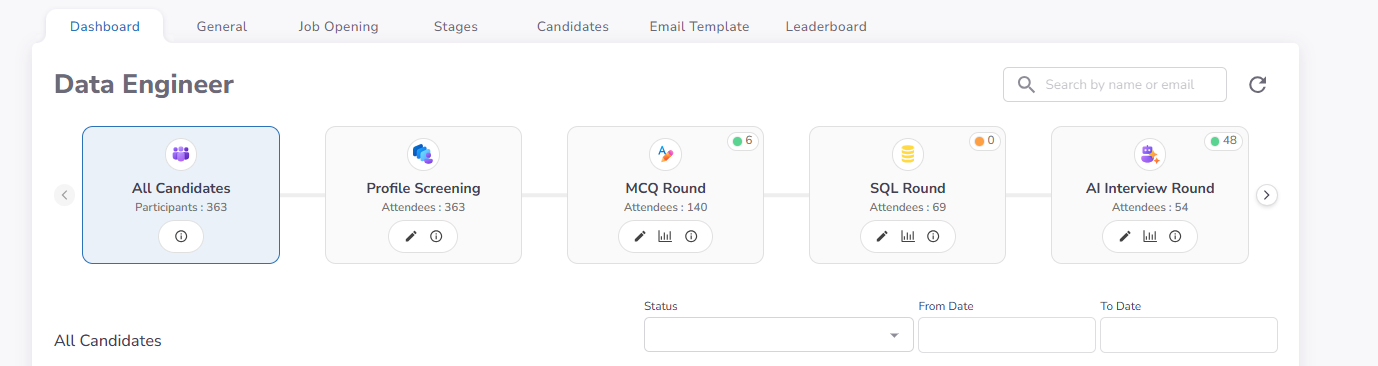
At the top of the dashboard, the Pipeline Ribbon visually maps every configured stage of your assessment. This interactive navigation bar serves as a dynamic filter for the candidate data below.
- Cumulative Overview: The "All Candidates" stage provides a consolidated view of every applicant regardless of their current status.
- Stage-Specific Tracking: Dedicated segments for stages like Profile Screening, Programming, and Interview show exactly how many candidates are currently residing in each phase.
- Funnel Health: Rapidly identify bottlenecks in your recruitment process by monitoring candidate distribution across the ribbon.
2. Dynamic Candidate Table
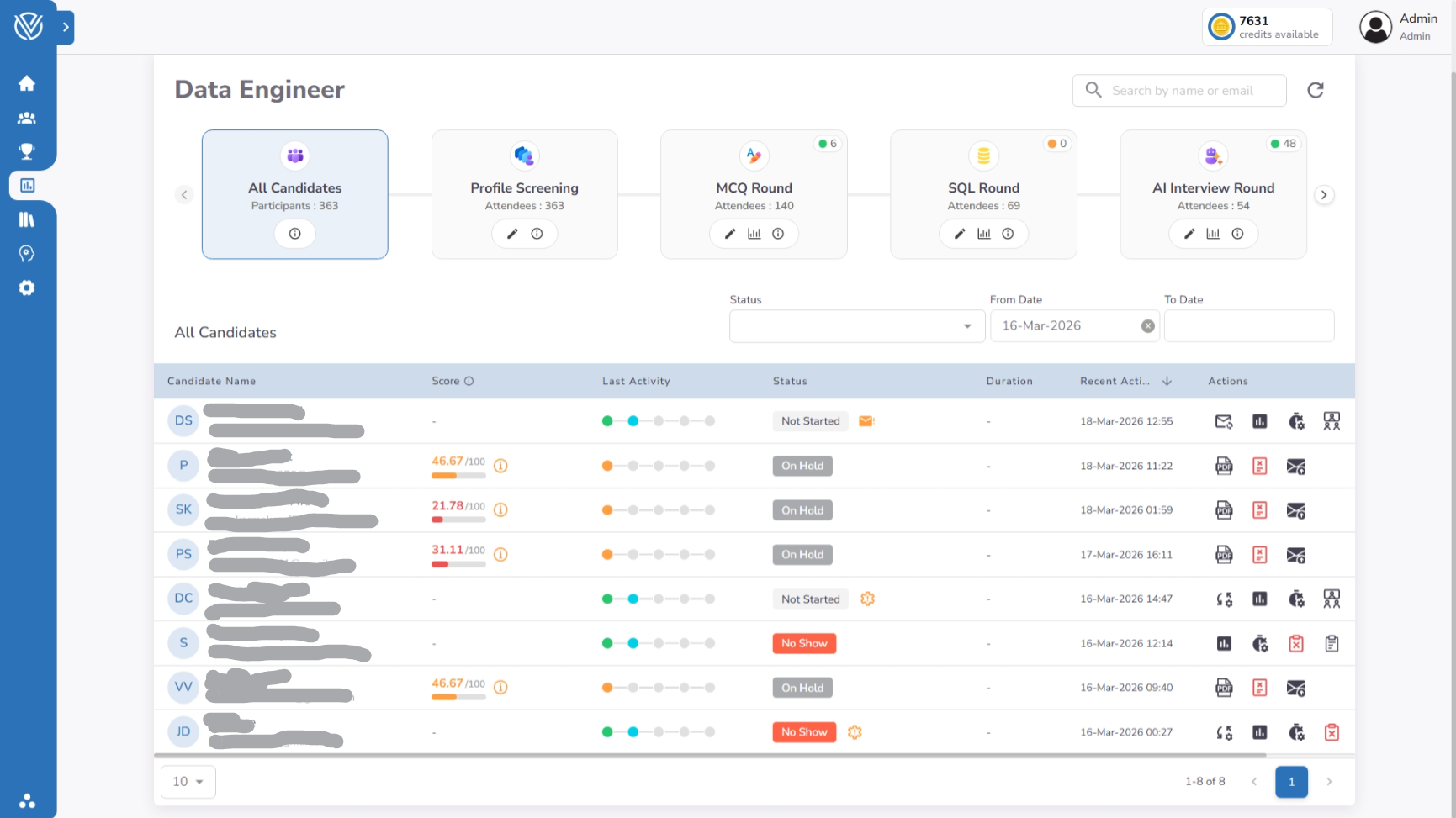
The Candidate Table updates dynamically based on your selection in the Pipeline Ribbon. It presents essential candidate metadata and real-time status updates.
- Real-Time Status: Track whether a candidate is In Progress, Completed, or has encountered a No Show status.
- Immediate Evaluation Data: Quick-view scores and AI-generated signals allow for rapid performance assessment without opening individual records.
3. Contextual Action Icons: Granular Control
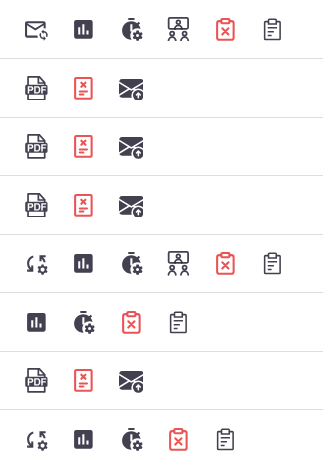
The Actions Column in the candidate table provides a suite of tools for proactive candidate management and intervention. These icons are contextual—changing based on the active stage and the candidate's current status.
Communication
Resend Invite

Quickly resend the stage invitation email if a candidate hasn't received it.
Force Invite

Manually bypass screening criteria (like resume or form filters) to invite a candidate who was previously ineligible.
Update Start Window

Extend or modify the "Start By" deadline to prevent a candidate's status from rolling over to "No Show."
Technical Intervention
Skip System Check

Allow candidates to bypass the hardware diagnostic step if they are experiencing localized technical issues.
Re-enable Attempt

If a candidate accidentally submits their work early, recruiters can re-enable the attempt for a second try.
Live Supervision

Trigger a live monitoring session to observe the candidate's attempt in real-time.
Review & Outcome Management
Previous Attempt Details

Open a modal to review the candidate's historical performance across all previous rounds within the current assessment.
Manual Progression

Use this to bridge a candidate to the next hiring stage.
- In Automatic Assessments: Candidates are moved to the next step immediately upon meeting the threshold score.
- In Non-Automatic Assessments: Recruiters must manually review results and click this icon to progress candidates to the next stage.
Even in Automatic mode, progression will pause if the next stage is an Interview. This allows the recruitment team to manually assign an interviewer and coordinate scheduling before the candidate proceeds.
Record Rejection

Formally reject the candidate from the entire assessment across all stages.
Asset Download

Instantly download the candidate's latest uploaded resume or submitted documents.
Key Benefits
- Zero-Latency Management: Perform complex interventions (like resetting attempts or extending deadlines) directly from the list view.
- Siloed Review: Focusing on a single stage reduces cognitive load when evaluating large candidate batches.
- Audit-Ready Actions: Every status change or manually triggered invitation is tracked, ensuring transparency in the hiring process.
See Also
- Detailed Candidate Status Reference — A full breakdown of every status you'll see in the dashboard.