Create an Organization Account
Who this is for
This sign-up flow is intended for organizations that want to run assessments or contests, including:
- Employers hiring for open roles
- Recruitment and staffing agencies
Candidates use a separate flow and do not create organization accounts.
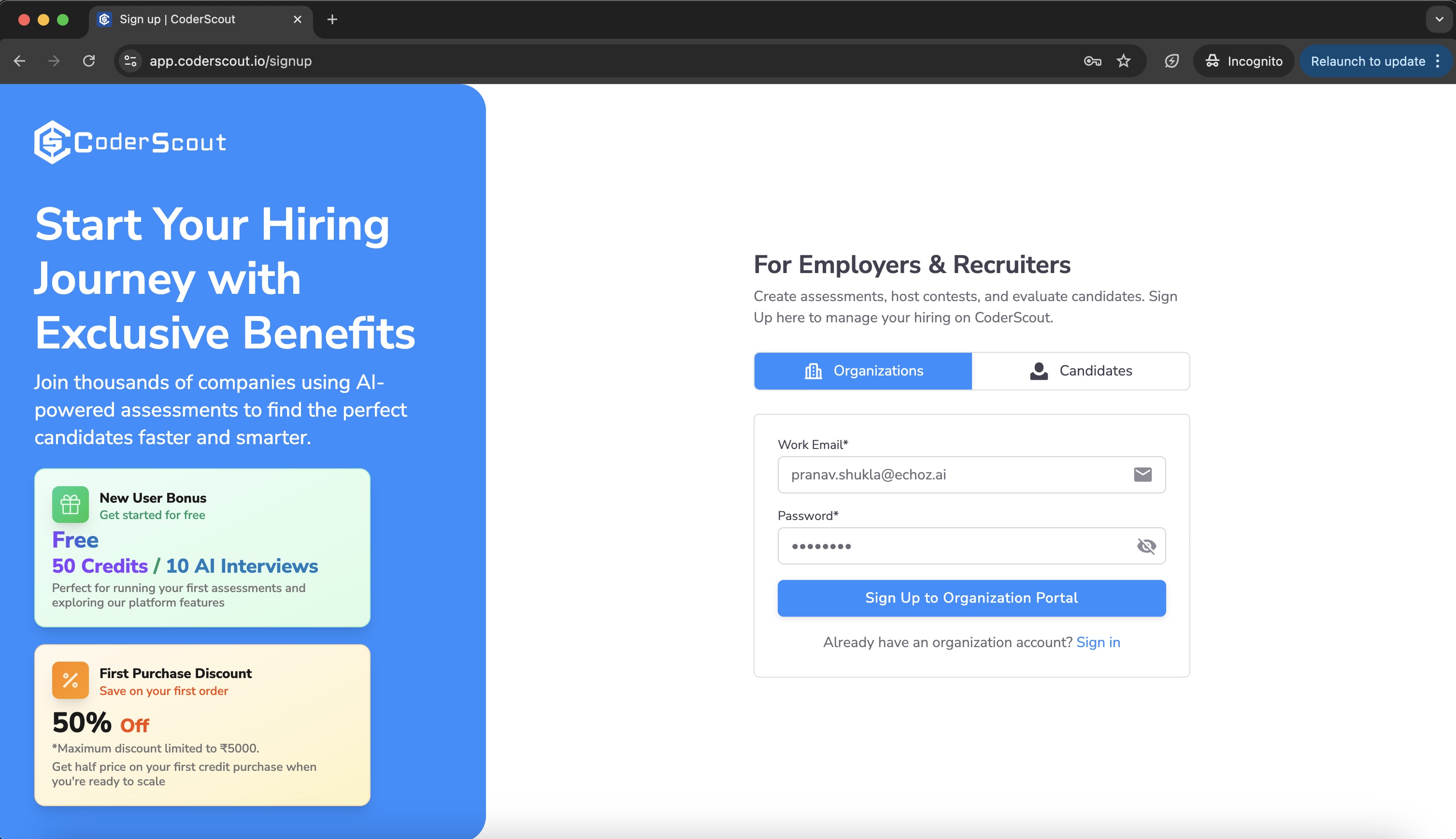
Step 1: Sign up using a work email
To create an organization account, visit:
👉 https://app.coderscout.io/signup
You must sign up using a work email address. Personal email domains are not recommended for organization accounts.
You will see the sign-up page similar to the one shown below:
Step 2: Verify your email
After submitting the sign-up form:
- You will receive a verification email
- Click the verification link
- Once verified, you can log in to CoderScout
Email verification is mandatory to activate your account.
Step 3: Complete your organization profile
After your first login, you will be prompted to complete your Organization Profile.
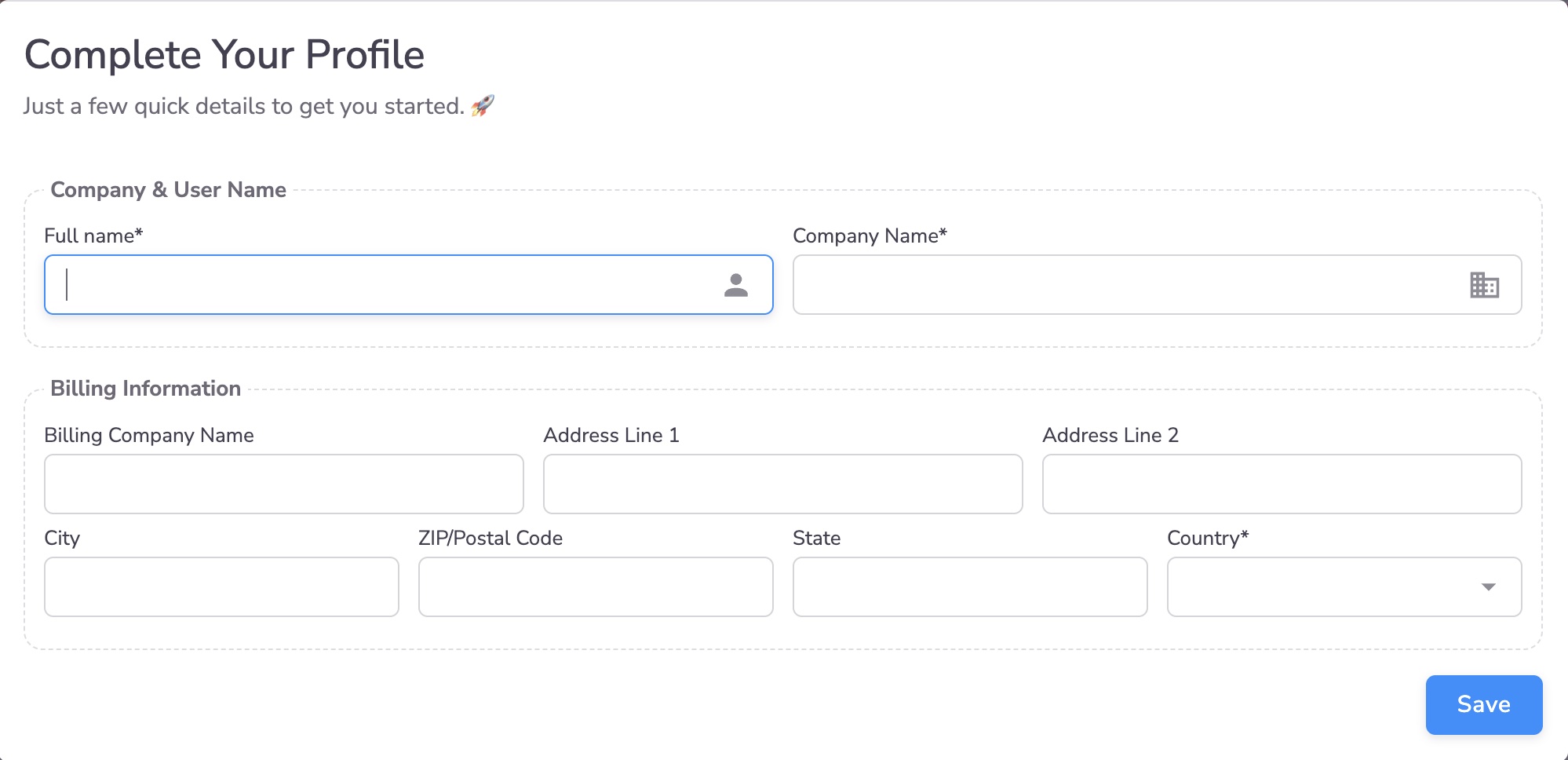
Company & User Information
-
Full Name
Your name as a user in the system -
Company Name
This is the organization name visible to candidates when they are invited to participate in Assessments or Contests
Billing Information
-
Billing Company Name
Can be the same as or different from the Company Name
This name appears on invoices and billing records -
Country (mandatory)
Represents the country of incorporation of the billing company
Determines:- Currency used for credit purchases
- Currency used for subscriptions
- Invoice currency
Other billing fields are used for invoicing and compliance.
If the Billing Company is based in India, you can optionally provide GSTIN of the Billing Company to get a GST Invoice for all payments. GST number and some of this billing information can be later updated by going to the Billing page at 👉 https://app.coderscout.io/subscription?active=billing
Important distinction: Company Name vs Billing Company Name
-
Company Name
- Candidate-facing identity
- Shown in invites, contests, and assessments
-
Billing Company Name
- Used only for invoices and payments
- Can be a parent company or legal entity
This allows flexibility for groups, agencies, and institutes.
After onboarding
Once onboarding is complete, you can:
- Create Assessments and Contests
- Invite candidates or accept direct applications
- Invite internal team members
- Configure stages and workflows
Next steps
- Understand user roles →
Roles & Permissions - Create your first assessment →
First Assessment