Stage Settings
Overview
When adding or editing a stage in an Assessment, you can configure several settings that control the candidate experience and automatic decision-making logic.
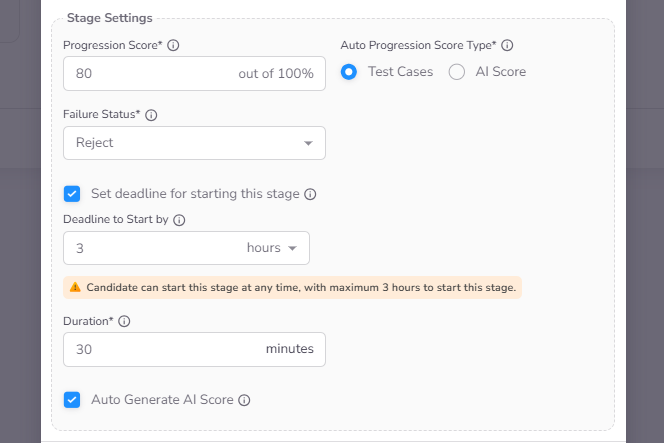
Auto-Progression Settings
These settings control how CoderScout handles candidates once a stage is submitted.
Progression Score
The minimum percentage threshold required for a candidate to automatically advance to the next stage in the assessment pipeline.
Auto Progression Score Type
Determines which evaluation metric is used as the basis for the progression threshold:
- Score: Uses objective results such as test case pass rates or correct Quiz answers.
- AI Score: Uses the qualitative score generated by AI analysis.
Failure Status
Defines the candidate's outcome if their score falls below the Progression Score:
- Rejected: The candidate's journey ends immediately.
- On Hold: The candidate's progress is paused, allowing for manual review by the hiring team.
Timing Settings
Deadline to Start By
This setting defines the time window a candidate has to begin the stage once they have verified their email and logged into the assessment.
- If a candidate does not start the stage within this period, they are automatically marked as a No Show.
- This ensures assessments progress within a predictable timeframe.
Duration
The fixed amount of time (in minutes) a candidate has to complete the stage once it has started.
- A countdown timer is visible to the candidate throughout the stage.
- The stage is automatically submitted when the duration expires.
Evaluation Settings
Auto Generate AI Score
When enabled, CoderScout automatically triggers AI-driven evaluation for the stage.
- The AI analyzes the candidate's submission (code, logic, or responses) to provide qualitative insights and an AI Score.
- Enabling this is required if you wish to use AI Score as the Auto Progression Score Type.