Proctoring requirements
Proctoring requirements let you control how candidates take a stage and what evidence you collect while they do. You set them once when you create an assessment, then adjust them per stage, so you can apply strict controls to a coding round and lighter ones to a quiz.
Available requirements
| Requirement | What it does |
|---|---|
| Webcam sharing | Records the candidate's webcam during the attempt. |
| Screen sharing | Records the candidate's screen during the attempt. |
| Auxiliary device | Adds a second camera, the candidate's phone, that shows their screen, keyboard and surroundings. |
| Enable full-screen mode | Requires the browser to stay in full-screen mode. |
| Disable external copy/paste | Blocks pasting content copied from outside the editor. |
| Disable context menu | Blocks right-click browser features. |
| Restrict dual screen access | Blocks candidates who use more than one display. |
Not every requirement is available for every stage type. AI Interview and Interview stages always record the webcam and screen, so Webcam sharing and Screen sharing don't appear as options for them.
Set proctoring requirements
You can set proctoring requirements in two places:
- When you create an assessment or contest, to set defaults for all stages.
- On an individual stage, to change the setup after creation.
Set them when you create an assessment or contest
In Step 3: Basic Details of the creation flow, the Proctoring Requirements section lists every requirement. CoderScout applies your selections to each stage where the requirement is supported.
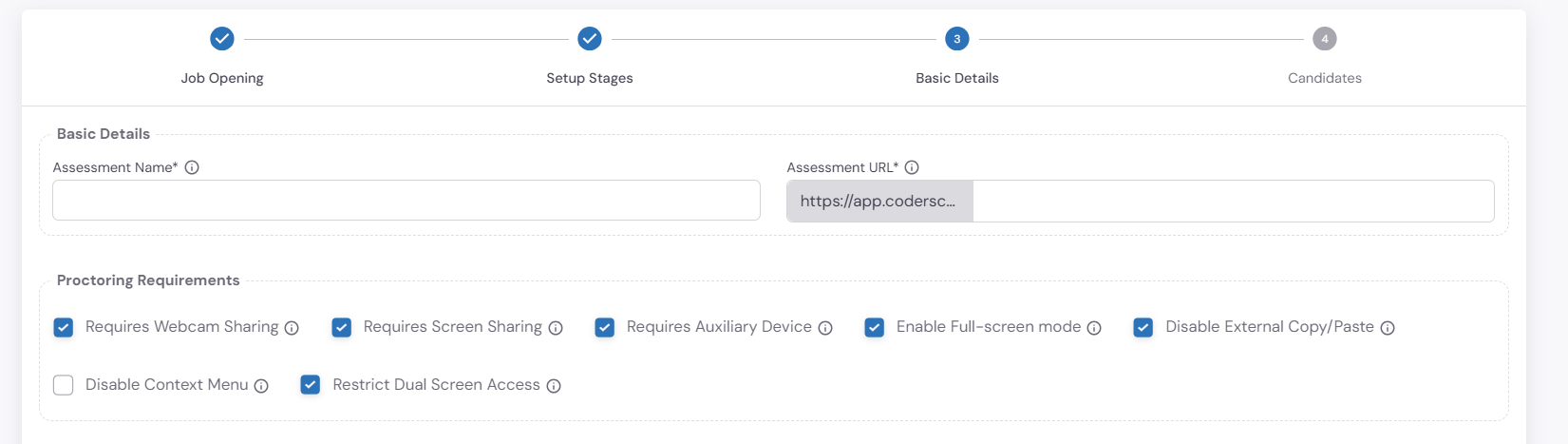
In this step, the options are labeled Requires Webcam Sharing, Requires Screen Sharing and Requires Auxiliary Device. They do the same thing as the stage-level options described below.
Change them for a single stage
To override the defaults for one stage after creation:
- Open your assessment and go to the Dashboard tab.
- In the stage ribbon, select the stage you want to change.
- Click the Edit (pencil) icon on that stage's card.
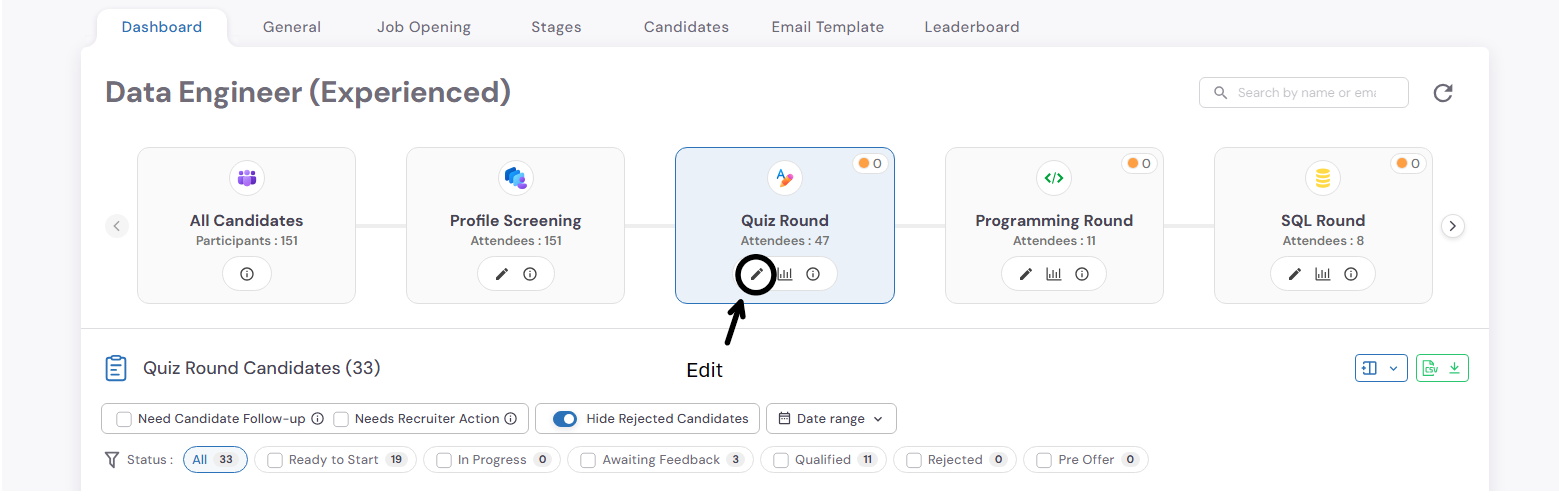
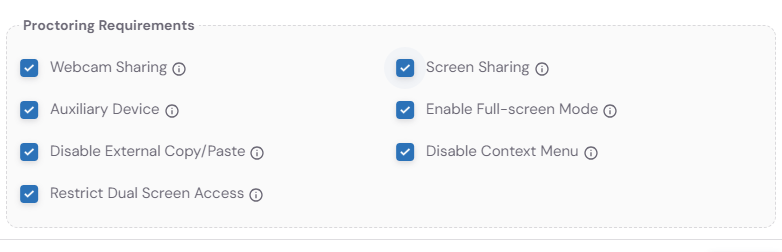
- In the stage configuration modal, scroll down to the Proctoring Requirements section.
- Select or clear the requirements you need, then save your changes.
Webcam sharing
When enabled, CoderScout records the candidate's webcam while they attempt the stage. You can review the footage later for proctoring.
Screen sharing
When enabled, CoderScout records the candidate's screen while they attempt the stage. Use it with webcam sharing to see both what the candidate does and who is doing it.
Auxiliary device
The auxiliary device gives you visibility beyond the laptop. The candidate uses their mobile phone as an external camera, positioned so that their screen and keyboard stay visible. You see how they work, not just what appears on screen.
Watch the overview
Watch this short video to see why the auxiliary device matters and how it works.
How it works for the candidate
- When the candidate starts the stage, CoderScout shows a pop-up with a QR code.
- The candidate scans the QR code with their phone's camera.
- The phone's browser asks for camera permission, and the candidate allows it.
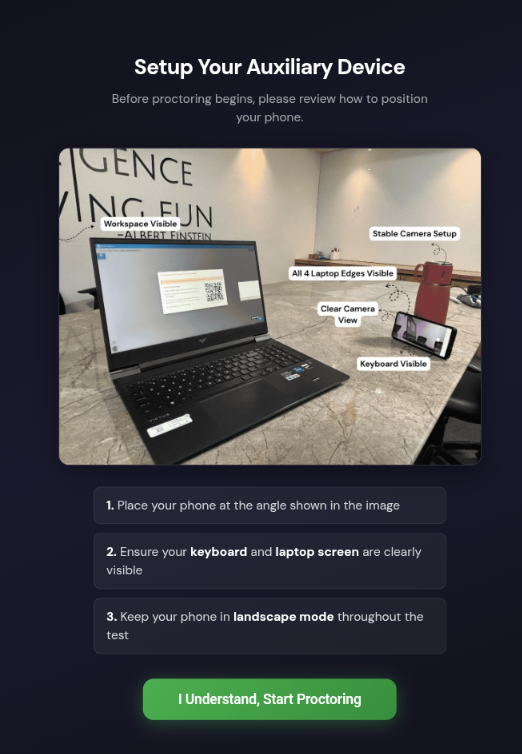
- CoderScout shows an example image of the correct setup. The candidate positions the phone to match it, then selects I Understand, Start Proctoring.
- The stage begins, and CoderScout captures images from the phone at regular intervals for your hiring team to review.
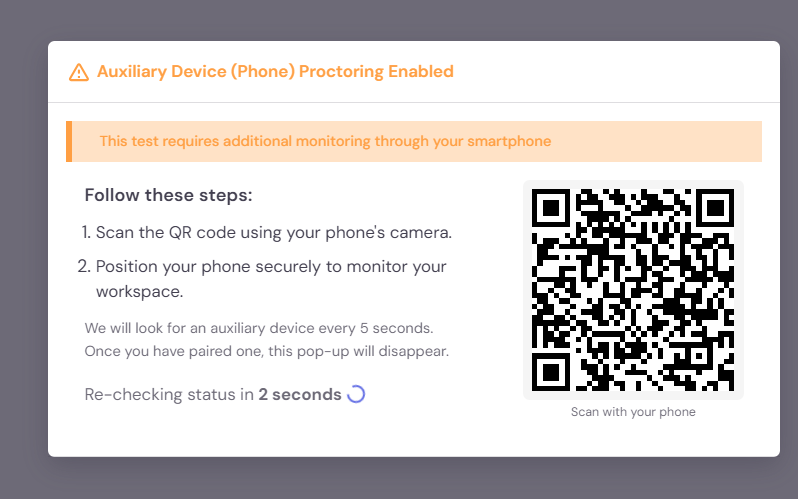
CoderScout checks for a paired device every few seconds. The pop-up closes as soon as the candidate pairs their phone.
What the candidate sees
Before proctoring begins, candidates see a guide that shows how to place their phone:
- Place the phone at the angle shown in the example image.
- Keep the keyboard and laptop screen clearly visible.
- Keep the phone in landscape mode for the whole test.
Tell candidates about the auxiliary device in the invite or reminder email. Candidates who have a charged phone and a stable stand ready can start without delays.
Enable full-screen mode
When enabled, CoderScout asks the candidate's browser for permission to enter full-screen mode. Candidates can't continue to the stage until they allow it.
Disable external copy/paste
When enabled, candidates can copy and paste inside the CoderScout editor. They can't paste content they copied from outside, such as a third-party website or another editor.
Disable context menu
When enabled, candidates can't right-click to open the browser menu. This blocks browser features such as saving the page, searching with Google Lens, and opening developer tools.
Restrict dual screen access
When enabled, CoderScout detects a second display connected through HDMI or a similar tool. Candidates can't continue until they disconnect it.